

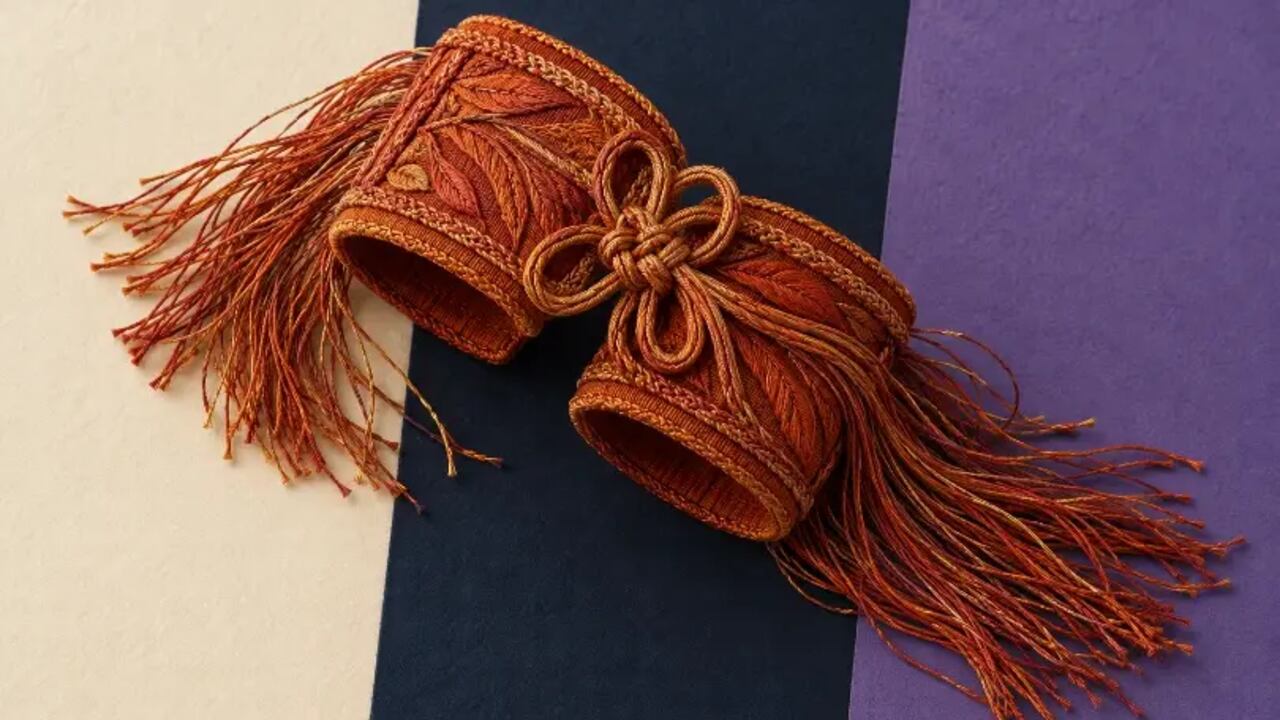
A costume cuff looks neatly isolated on a cream publicity poster. The same image moves onto a dark programme cover, and a pale outline appears around its fringe. The designer has changed only the background. An asset that seemed finished now looks as though it has been cut from paper with a little of the old photograph still attached.
That matters when one prop photograph must serve several layouts. An AI Photo Editor can help prepare the cutout, but the approval needs to cover the backgrounds where it will appear. A photo edit that survives one forgiving colour has not yet earned a place in every version of the campaign.
Imagine a small film team preparing artwork around a rust-coloured cuff with loose threads and an open decorative knot. Its original photograph has a pale wall behind it. Along the fringe, some pixels describe the thread itself and some include a mixture of thread and wall. Removing the wall means deciding what belongs to that boundary, not simply erasing a large rectangle around the object.
When an AI Photo Editor returns a transparent-background candidate, inspect what has happened to those fine edges. A light remnant may disappear against cream and become obvious on navy. A dark remnant can do the opposite. The transparency of the surrounding area does not establish that every boundary pixel is suitable for its new setting.
PicEditor AI provides a focused background-remover workflow: upload the source, choose the image size, and generate a transparent result. Image Size belongs to the preparation of that candidate. It does not replace the later decision about whether the costume's threads, openings, and overall shape have survived well enough for the intended artwork.
Start with a source in which the important fringe can actually be seen. If a thread already merges into the wall or leaves the photograph's edge, the edited result cannot be treated as a faithful recovery merely because it looks tidy. Keep the original beside the candidate. The source is needed to distinguish an unwanted remnant from a real pale thread.
The decorative knot needs separate attention. Its centre should show the new backdrop if that part of the source is genuinely open. A solid patch left inside the knot may be hard to notice on a matching colour. Conversely, an area of fabric mistakenly made transparent can turn into a convincing-looking hole. Both errors concern what the object contains, not just the smoothness of its outer silhouette.
Use an ordinary layout or image-editing environment to place the returned cutout over a light background, a dark background, and a strong colour different from the subject. This is a proposed review method outside the generation service. Keep the asset unchanged during the comparison so that each backdrop reveals something about the same candidate.
A Photo editor result is easier to judge when its displayed size and position stay fixed. In the imagined campaign, the cuff might sit at the same size on cream, navy, and violet test areas. Do not generate a fresh cuff for each colour and call that a background comparison; differences between the objects would obscure the question about this particular edge.
Begin with the outer fringe. Follow one identifiable thread from where it joins the fabric to its tip. Look for a pale band beyond it, a dark seam beside it, or a sudden break where it should continue. Then compare that location with the source. A pale tip may belong to the thread itself. Compare that spot before removing it.
PicEditor AI can supply the transparent candidate, while this comparison determines which uses it can support. An edge that appears clean on navy may still have a dark remnant hidden by that colour. Moving it onto cream makes that possibility easier to inspect. Neither backdrop is the correct one for every asset; their difference is what makes the check useful.
Check the open knot after the outline. Does the new colour show through the same gaps on each test background? Is there a patch that retains the old wall colour? Compare the inner edge with the source before approving a cleaner-looking opening. If a small strip of fabric has disappeared, a more elegant negative space is still a change to the prop.
Inspect an enlarged view to locate the problem, then return to the actual programme size. A tiny imperfection may have no visible effect there, while a broad pale halo can remain conspicuous. At programme size, preserve the visible character of the fringe. Further smoothing can remove real fibres without improving the printed-looking composition.
A perfectly smooth silhouette is not always the right repair. The cuff is made from fabric, and its roughness may be part of the costume design. Compare any proposed correction with the source rather than with an imagined factory-clean edge. A smaller halo is useful only if the edit has not achieved it by shaving away the fringe.
Where a conventional editing workflow offers suitable edge adjustments, make a local correction and repeat the background comparison. This does not claim that the generation service supplies a specific brush, mask control, or colour-decontamination feature. Use the tools actually available, and keep checking the same thread or opening that prompted the repair.
If the source is the difficulty, another photograph may be more useful than another interpretation. A background that separates clearly from the cuff can make its fragile details easier to judge. Leave enough room around the fringe and avoid letting a supporting object cover the knot. Those choices improve the evidence available to whoever or whatever prepares the next cutout.
Sometimes the original photograph is the better artwork. A publicity image can retain its setting if that setting belongs to the story and suits the layout. There is no requirement to isolate every prop. The designer should compare that option with the cutout before treating transparency as an improvement in itself.
Finally, inspect the actual composed file. A temporary test background may not match the programme's textured cover, and an export can be flattened onto a colour that was never intended. Open the version that will be delivered and check its boundary in place. A flattened file with the wrong background needs correction even if the separate cutout passed.
PicEditor AI can help a small creative team prepare a reusable starting asset when the source gives the subject a readable boundary. Fine fringe and enclosed gaps still need comparison with that source. If those details remain uncertain, another photograph or the original composition may serve the campaign better.
For the costume cuff, approve the programme and poster versions after seeing the same asset on their actual backgrounds. Keep the real threads, remove the old setting where the evidence supports it, and avoid calling the cutout universally ready because it looked clean on cream.



Hi Everyone, after a due consideration, we have decided that we will be open for donations to help us in managing our website. We will be greatful for any kind of amount we receive. Thanks!
— Midgard Times 🎬 (@Moviesr_net) January 4, 2026
PayPal- [email protected] pic.twitter.com/DlNNz5Npm5
Get all latest content delivered to your email a few times a month.
Bringing Pop Culture News from Every Realm, Get All the Latest Movie, TV News, Reviews & Trailers
Got Any questions? Drop an email to [email protected]


 © Copyrights MOVIESR.NET All rights reserved